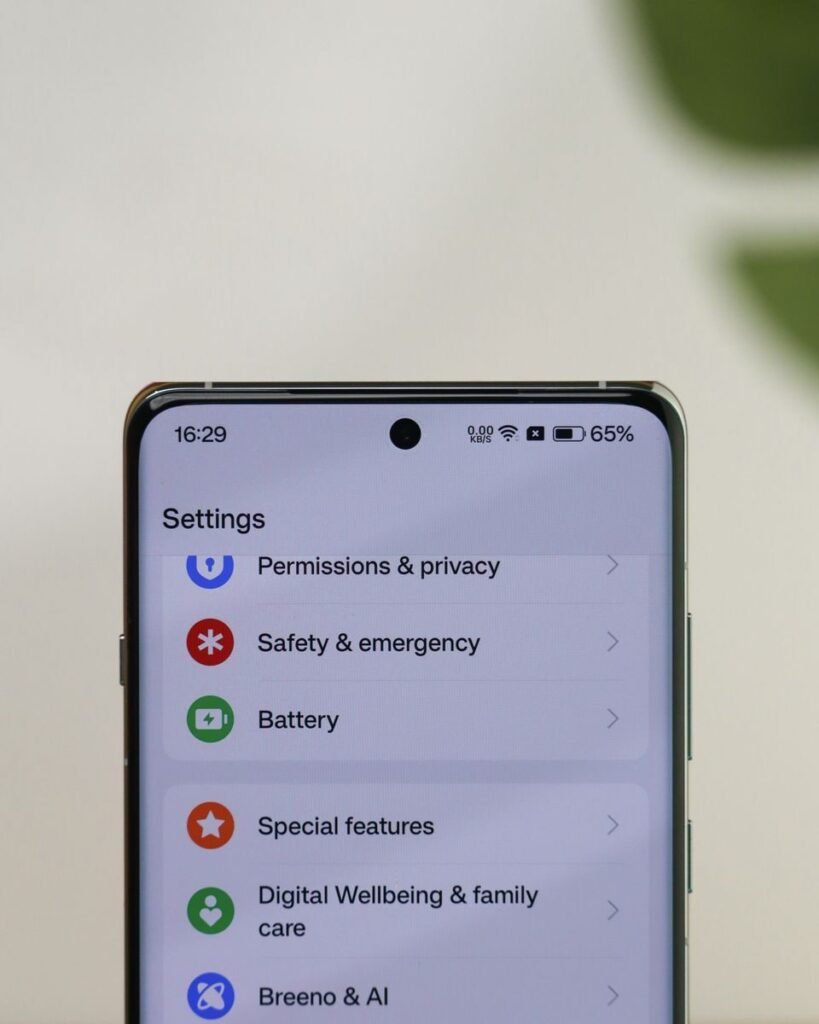
App permissions deserve a brief pause because a request often appears while we are trying to do something else. We want to join a call, scan a document, or finish setting up a service. Tapping allow can feel like the fastest route past an interruption, even when we have not considered what the app is asking to use.
A practical review starts with the task. What feature do we want, what information or device capability does it need, and is the requested access proportionate? This approach gives us a reason for the choice without assuming that every request is harmful or every familiar app deserves every permission.
Match the request to the feature
A video call provides an understandable reason for camera and microphone access. A map feature may need location information. The connection should still be clear in the moment we are using the feature. If the request is unexpected, pause and read the explanation instead of guessing that it must be necessary.
Check whether the feature is optional. An app may offer several functions, and refusing one permission may affect only a specific function rather than the entire service. The outcome varies by app and operating system, so test the relevant task after making a change.
Read the scope of access
Permission prompts may offer choices about timing, precision, or the material an app can access. Read the options that are actually displayed on your device. Prefer the narrower option that supports the task when an appropriate choice is available, rather than relying on an instruction written for a different device version.
For current platform instructions, Google’s app-permission guide explains where Android users can review permissions. Labels and options vary with device and software version. Use the manufacturer’s documentation when the described controls do not match your screen.
- Ask which feature needs the access.
- Read whether access is limited to use or continues more broadly.
- Check whether a selected photo or file would be sufficient.
- Avoid granting a permission merely to dismiss an unexplained prompt.
Review old decisions as well as new prompts
An app that was useful during a trip or a short project may remain on the device after the task ends. Review the apps you no longer use and the permissions attached to them. The fact that a permission once had a sensible purpose does not mean the same purpose still exists.
Work through a small number of apps at a time so you can understand the effect of each change. Start with services you do not recognise or no longer need. If you are managing an employer’s device, follow the organisation’s process rather than changing required controls without coordination.
Keep account access in the picture
Operating-system permissions are only part of an app’s access. A service may also connect to an online account or receive information that you enter directly. Review connected services through the account’s own documented settings where appropriate. Do not assume that removing a camera permission disconnects every relationship with the service.
Use a direct route to account settings rather than an unexpected message claiming that permission changes are urgent. If an email or notification asks for credentials to “fix” access, open the official service independently. The review should not become an opportunity for someone else to collect a login.
Test essential functions after a change
After adjusting access, try the task you still need. Check a call, an upload, or another relevant function with non-sensitive sample information. If something stops working, reconsider the particular permission needed rather than restoring every permission without examining the connection.
For shared devices, explain important changes to the other authorised users. A confusing failure during a lesson or appointment can lead someone to grant access again in a hurry. A brief explanation makes the setting easier to maintain and reduces the chance that a sensible restriction is treated as a random fault.
Write down a manageable review routine
A complete audit of every app may be more than an ordinary user needs to attempt in one sitting. Set a small recurring review, such as checking apps related to a finished project or examining a few services after replacing a device. Record questions that need the developer’s support rather than making unsupported assumptions.
- Remove apps you have decided you no longer need through the normal device process.
- Review permissions when your use of a service changes.
- Keep necessary work settings consistent with organisational instructions.
- Consult official help when a control is unclear.
A Practical Review Checklist
- Connect the permission request to the feature currently being used.
- Read the access choices displayed on the actual device.
- Choose an appropriate narrower option when the platform offers one.
- Look for an explanation when the request seems unrelated.
- Test the necessary feature after changing a permission.
- Review apps that remain after a temporary project has ended.
- Keep connected account access separate from operating-system permissions.
App permissions are easier to manage when each allowance has a current purpose. We do not need a dramatic rule that denies everything. We need enough understanding to make a deliberate choice, check its effect, and revisit it when the task or the app changes.
